Documentation
Everything you need to install and configure the Triple Whale plugin for nopCommerce 4.90.
Installation
-
Download the plugin archive
Get the
Widgets.TripleWhale.zipfile. -
Go to admin area > Configuration > Local plugins
Log in to your nopCommerce administration and open the Local plugins page.
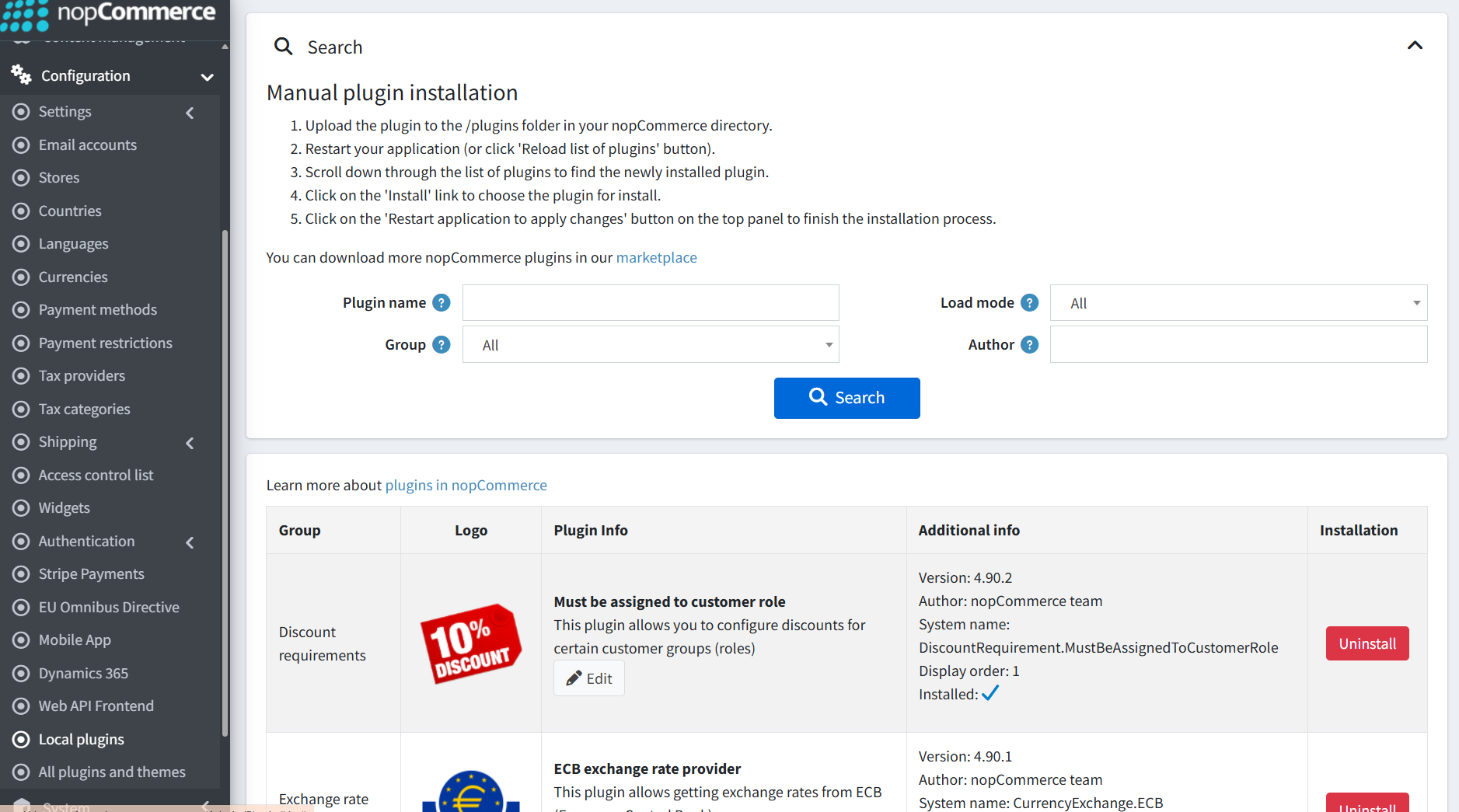
Admin → Configuration → Local plugins -
Upload the plugin archive
Use the "Upload plugin or theme" button to upload the archive.
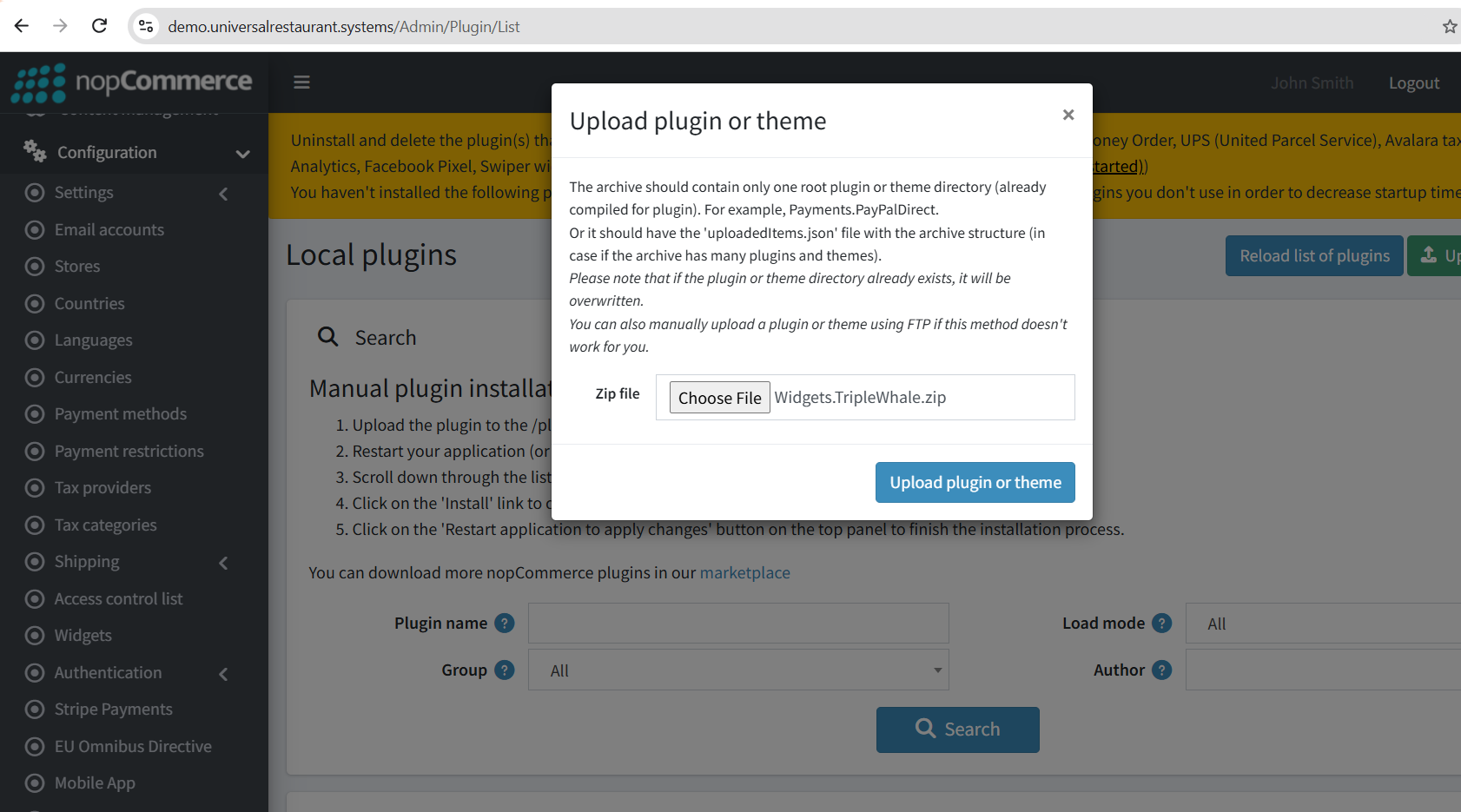
Upload dialog with the .zip selected -
Install the plugin
Find the newly uploaded plugin and click "Install". This schedules the background sync task (every 5 minutes) and the log cleanup task (daily).
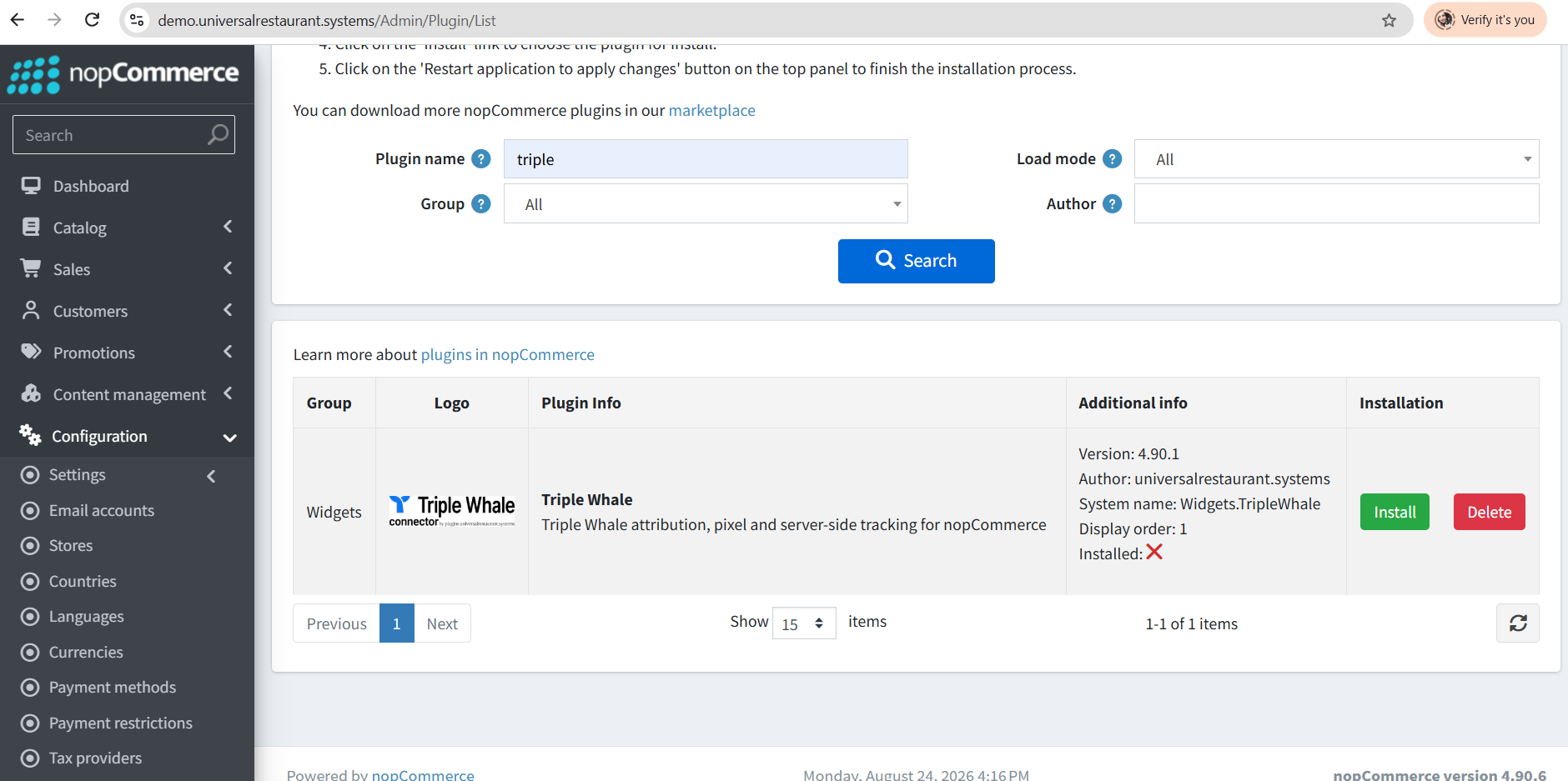
The Triple Whale plugin with the "Install" button
Configuration
-
API key
Paste your Triple Whale API key (found under Data → APIs in Triple Whale).
-
Shop URL
Enter the shop domain that matches Settings → Store in Triple Whale. Leave empty to auto-detect from the store URL.
-
Pixel snippet
Paste the Triple Whale base tracking snippet for client-side pixel tracking. This step is required.
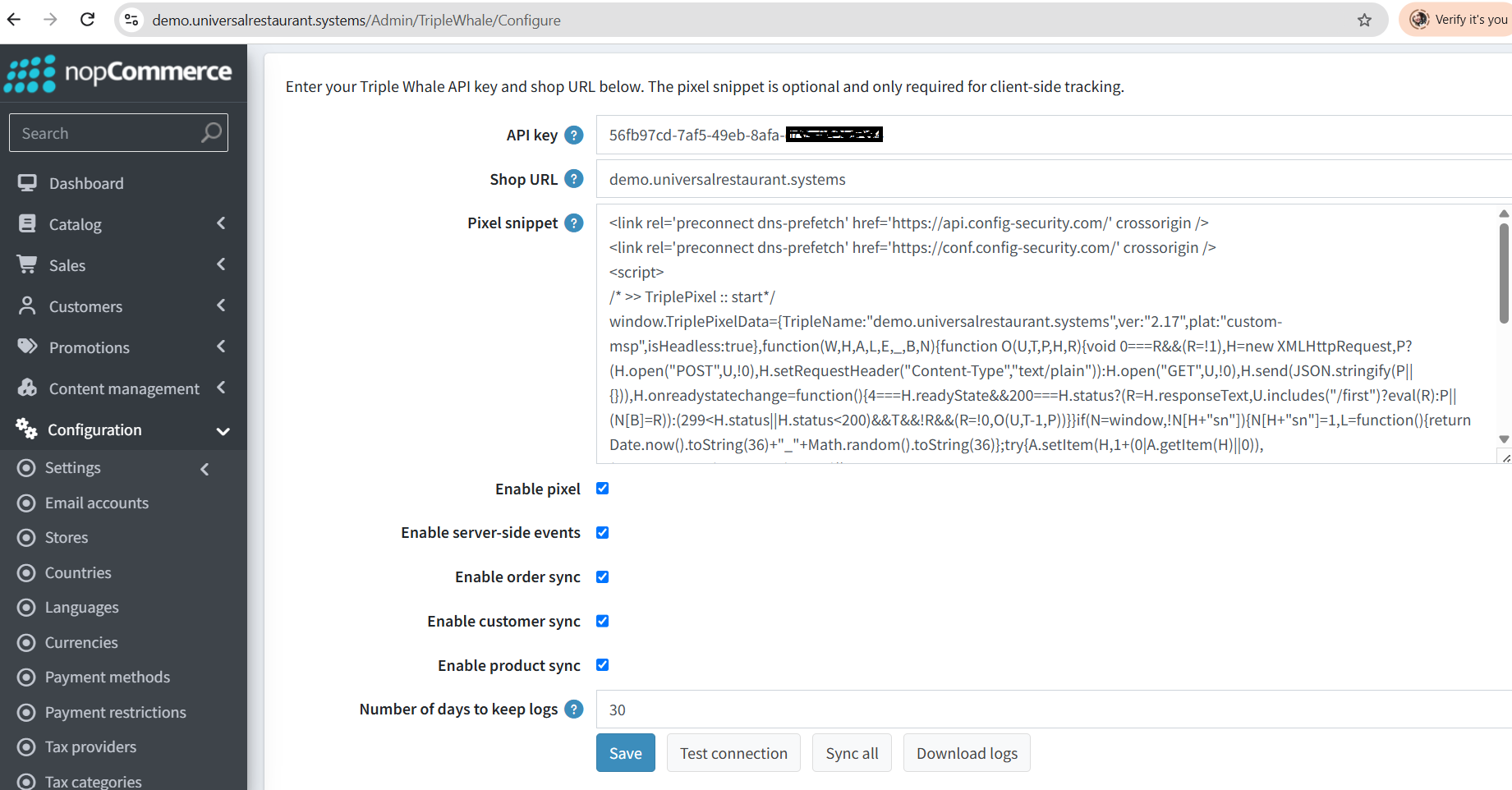
The plugin fully configured — API key and pixel snippet filled in -
Enable the sync toggles
Turn on pixel, server-side events, order sync, customer sync and product sync as needed.
-
Test connection
Press "Test connection" to verify your API key, then "Save".
-
Sync all
Press "Sync all" to backfill your existing orders, customers and products.
How data syncs
The plugin keeps Triple Whale in sync with your store's revenue, customers and catalog.
| Entity | What is sent |
|---|---|
| Orders | Line items, revenue, shipping, discounts, tax, customer, payment gateway, currency and status. |
| Refunds | Full and partial refunds. For multi-item orders the refund amount is distributed proportionally across the line items. Refund dates are read from the order notes so they land on the correct day. |
| Cancelled orders | Marked as void and excluded from revenue, so they don't inflate your Triple Whale metrics. |
| Customers | Email, name, address and consent. |
| Products | Catalog and variants, so Triple Whale can apply COGS. |
| Events | Purchase and Refund server-side events for attribution (works without client-side JavaScript). |
Troubleshooting
Use the built-in logs to diagnose any issue.
X-Forwarded-For header is forwarded correctly — otherwise all visitors appear as a single IP and the rate limit will block legitimate traffic.
Download logs
On the plugin configuration page press "Download logs" to export a CSV with every API request, response and error.
Check the retry queue
Transient failures are retried automatically with exponential backoff (up to 5 attempts).
Verify the connection
Run "Test connection" to confirm the API key and shop URL are valid.