← Back to product

Documentation

Everything you need to install and configure the Stripe Payments plugin for nopCommerce 4.90.

Why Stripe Payments

โš™๏ธ

Easy configuration

Set up in minutes with just your Stripe API keys.

๐Ÿš€

Quick installation

Install directly from the nopCommerce admin panel.

๐Ÿ”ง

Improve functionality

Adds Google Pay, Apple Pay, 3D Secure 2 and refunds to your store.

๐Ÿ”’

A customer is redirected to the secure Stripe website to complete the payment

Card data never touches your server โ€” fully PCI-DSS compliant.

Installation instructions

  1. Download the plugin archive

    Get the Payments.Stripe.zip file after purchase.

  2. Go to admin area > Configuration > Local plugins

    Log in to your nopCommerce administration and open the Local plugins page.

  3. Upload the plugin archive

    Use the "Upload plugin or theme" button to upload the archive.

  4. Install the plugin

    Scroll down through the list of plugins to find the newly uploaded plugin and click the "Install" button.

  5. Enable the payment method

    Go to Configuration > Payment, then edit / enable the Stripe payment method.

  6. Activate Stripe plugin

    Activate the plugin so it becomes available at checkout.
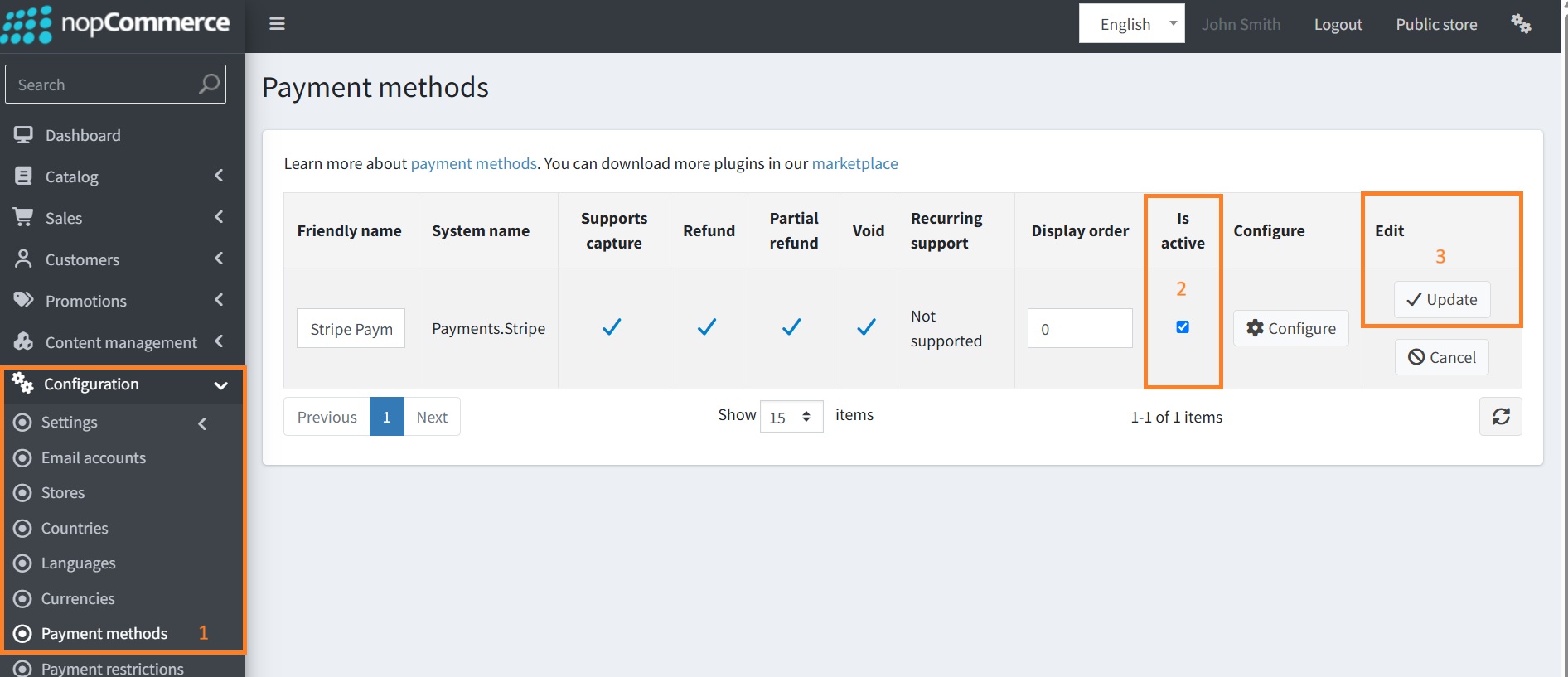
    Activate Stripe plugin
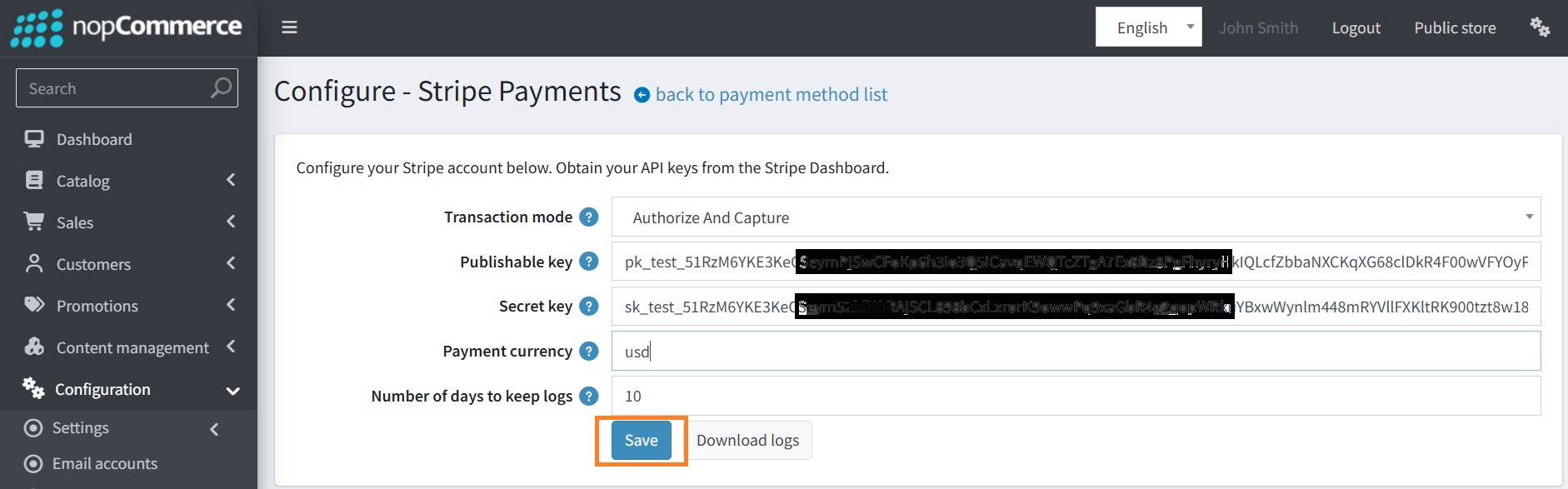
  7. Configure Stripe plugin

    Enter your Stripe API keys and configure the payment options.
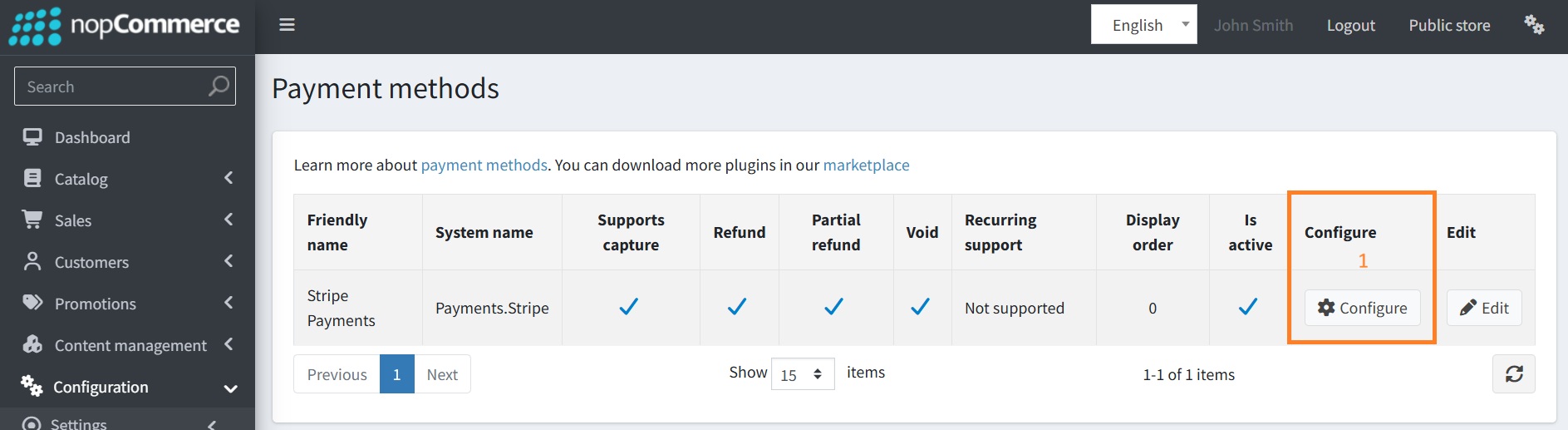
    Configure Stripe โ€” step 1Configure Stripe โ€” step 2