Documentation
Installation and configuration guide for the Free Shipping Bar plugin for nopCommerce 4.90.
Installation
-
Upload the plugin
In the admin area go to
Configuration → Local pluginsand pressUpload plugin or theme. Choose theWidgets.FreeShippingBar.zipfile.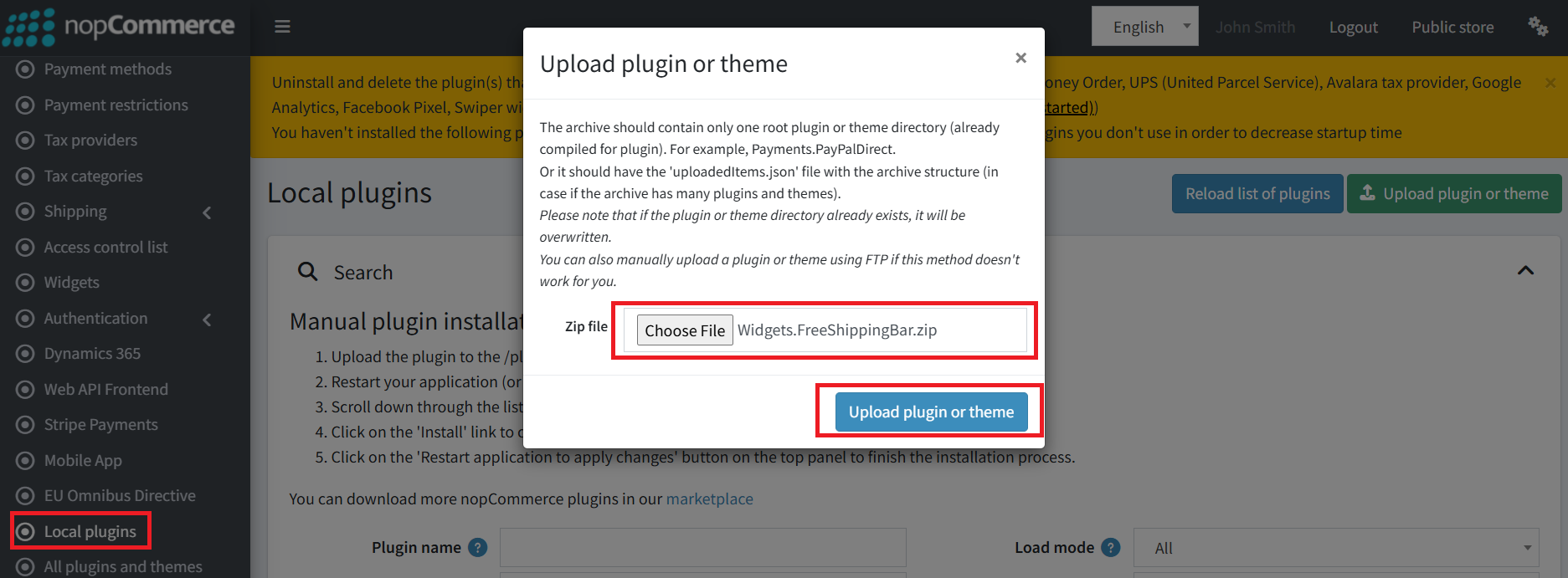
-
Install the plugin
Find “Free Shipping Bar” in the list and press
Install.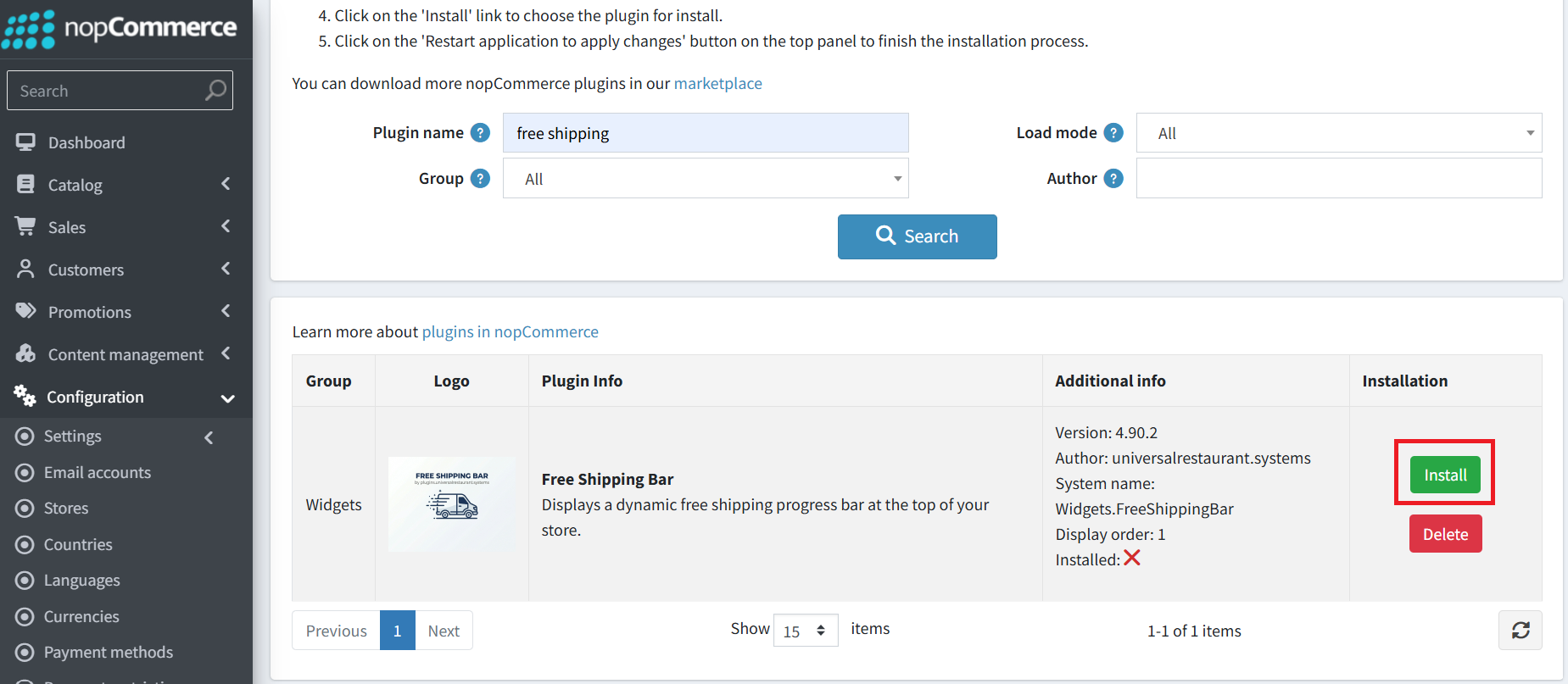
-
Configure the plugin
Go to
Configuration → Widgetsand pressConfigurenext to “Free Shipping Bar”.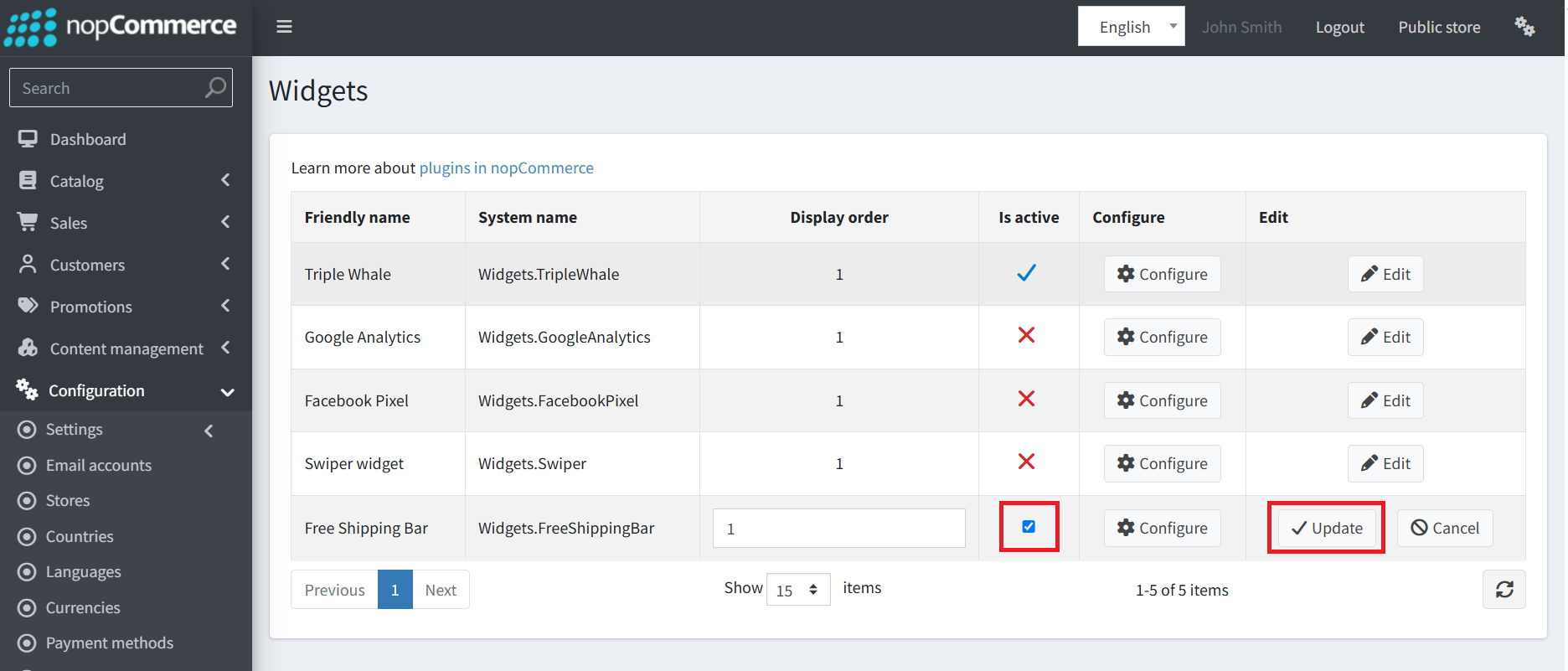
-
Configure the plugin
Set the options described in the table below.
Configuration options
| Option | Description |
|---|---|
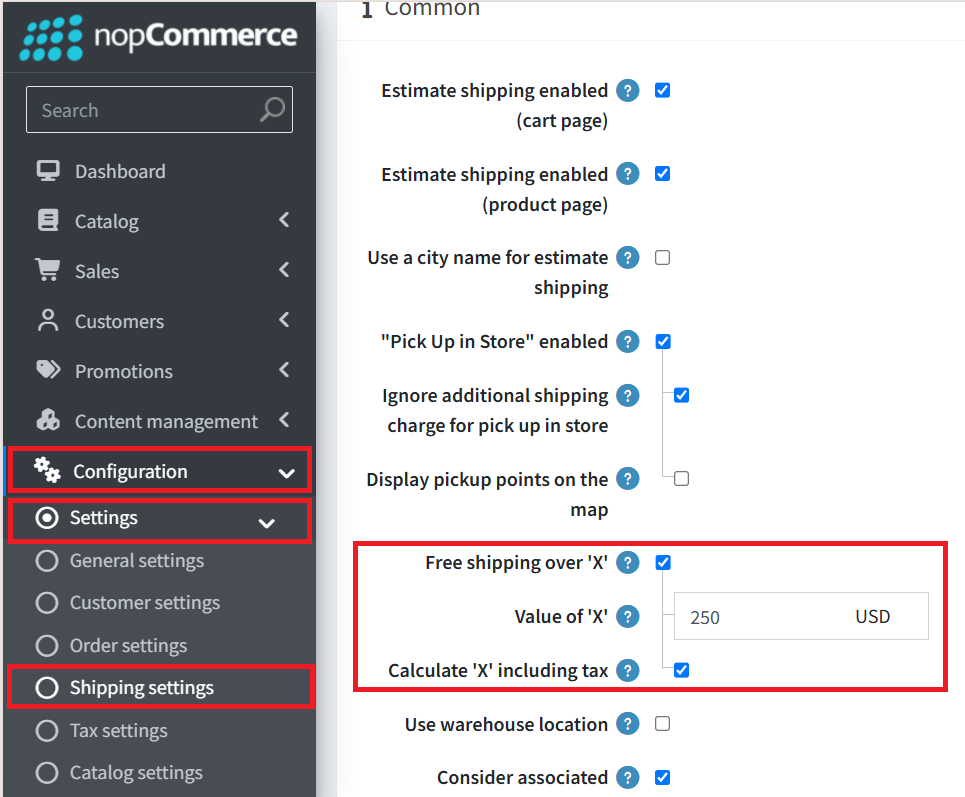
| Use native free shipping threshold | Reads the “Free shipping over X” value from Configuration → Shipping → Shipping settings. Enabled by default. |
| Including tax | Whether the cart subtotal is compared against the threshold including tax. |
| Message language | Leave on “Auto” to follow the customer's language, or force a specific language. |
How the bar behaves
The bar appears at the top of the store when a threshold is configured.
| State | What the customer sees |
|---|---|
| Below the threshold | “Add {amount} more for free shipping!” with a progress bar showing how close they are. |
| Threshold reached | “You've unlocked free shipping!” with a full progress bar. |
Translations
The message is localized automatically based on the customer's language.
Built-in translations are included for: German, French, Spanish, Italian, Chinese (Mandarin), Russian, Romanian, Dutch, Greek, Turkish, Arabic and Hindi.
Configuration → Languages → String resources under the keys Plugins.Widgets.FreeShippingBar.MessageRemaining and Plugins.Widgets.FreeShippingBar.MessageReached.Troubleshooting
Configuration → Shipping → Shipping settings.
Bar not updating
The bar updates automatically on AJAX add-to-cart. Changes made on the shopping cart page reload the page, so the bar recalculates there too.
Configure button missing
Make sure the plugin is installed and active, then restart the application once after deploying a new version.
Translations not appearing
The bundled translations are written to the database on install/update. Reinstall the plugin or edit the resource strings in
Configuration → Languages.